Showing posts with label how to. Show all posts

Sunday, November 24, 2013

Share your HTML pages in Google Drive to public

You can make your files/folders in Google Drive visible to public on web, so you can use your Google Drive as a simple web server.


To make it public:
- Login your Google Drive.
- Right click on the folder/file you want to share with public.
- Select Share... > Share...
- Change Who can access.
- Select Public on the web. So anyone on the Internet can find and access.
- Save.

Get the link of your HTML page:
- Right click on the file.
- Share... > Share...
- Copy the Link to share.
- Open the link in browser.
- Click Preview.
- A preview window will be opened, It's your taget link.

Try my shared HTML in Google Drive:
https://googledrive.com/host/0B69wuI993SmgUTBpdEJmS0dTRjA/testJQueryUI_Accordion.html

Saturday, September 14, 2013

Simulate Touch events on Google Chrome Desktop

To simulate Touch Events on Google Chrome Desktop:

Open Developer Tools by clicking on Chrom's Menu, select Tools, Developer Tools.


Click on the Setup icon.


Select Overrides Settings, scroll down to enable Emulate touch events.


Sunday, September 8, 2013

Hello World! for Firefox OS WebApps

To build a simple Hello World run on Firefox OS:

Hello World run on Firefox OS Emulator
  • Create a working directory to hold your source code.
  • Create a HTML file, named index.html, in the working directory.
    <html>
    <header>
     <title>Mobile-Web-App</title>
    </header>
    <body>
     <p>Hello! from <a href="http://mobile-web-app.blogspot.com/">Mobile-Web-App</a>.
    </body>
    </html>
    
  • Create another file, "manifest.webapp".
    { "name": "Hello Firefox OS",
     "description": "Hello from Mobile-Web-App",
     "launch_path": "/index.html"
    }
    

Run with Firefox OS Simulator on desktop: start Firefox browser, start Firefox OS Simulator by Tools from Firefox menu -> Web Developer -> Firefox OS Simulator.

Click on Add Directory button, browse to select your manifest.webapp. The Emulator will start and load your WebApp.

Alternative, you can click the Simulator Stopped if it is not yet started. Then click Connect button.


Saturday, September 7, 2013

Obtaining a simple API key for use with the YouTube API

Obtaining a simple API key for use with the YouTube API

This tutorial demonstrates how to create a project in the Google API console and enable the YouTube Data and Analytics APIs for use with the YouTube API sample code. This tutorial covers creating a Simple API key.

This is a shorter version of another tutorial, "Obtaining a developer key for use with the YouTube Data and Analytics API", which includes instructions on setting up an OAuth 2.0 client ID and secret. That video can be found here: http://youtu.be/Im69kzhpR3I.


Monday, March 18, 2013

Check if Tkinter installed in Python

Tkinter is Python's de-facto standard GUI (Graphical User Interface) package. It is a thin object-oriented layer on top of Tcl/Tk.

To check if Tkinter installed, type the following command in IDLE(Python Shell), for Python 2.x:

>>> import Tkinter


import Tkinter for Python 2.x


for Python 3.x:

>>> import tkinter

import tkinter for Python 3.x


Install Python on Ubuntu

To install Python on Ubuntu. simple search Python in Ubuntu Software Center.

Install Python on Ubuntu


You can install both Python 2.x and 3.2 together.

Both Python 2.7.3 and 3.2.3 installed

Thursday, March 14, 2013

Code Formatting Features in NetBeans IDE


Code Formatting Features in NetBeans IDE

This screencast demonstrates how to use a few important formatting features in the NetBeans IDE such as, general indentation, braces and others. This demonstration is based on the Formatting project available in the NetBeans Sample Code Library.

Wednesday, June 20, 2012

Creating Your First Ubuntu App

A tutorial for how to create you first Ubuntu application. The tutorial shows how to create a simple web browser by generating a project, setting up your user interface, writing the code, and creating an Ubuntu package.


Thursday, April 5, 2012

Visual Studio Toolbox: Building Metro Style Apps with XAML

In this video, takes a look at how you can use Visual Studio 11 to start building Metro style apps for Windows 8. It will focus on using XAML and will show you how to use each of the three project templates Visual Studio provides. And then demonstrate building an app that uses real data instead of sample data.

Monday, February 27, 2012

Hello Dart!

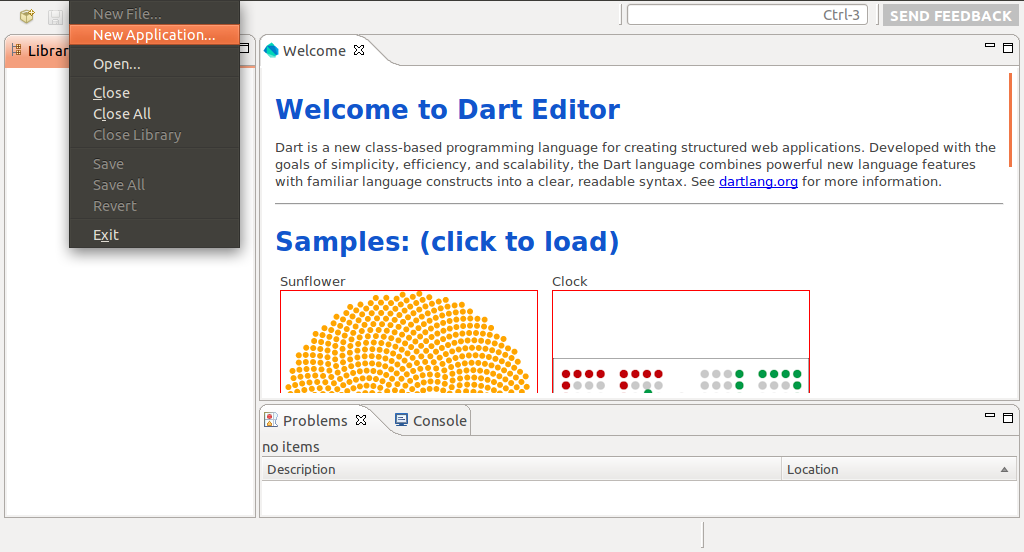
- Install and start DartEditor

- Click File -> New Application in Eclipse menu


- Enter Name(and also Directory) of your Dart application, check Application Type of Web, and click Finish.


- A dummy Hello World! of Dart will be generated. Click the Run (green arrow) button to start the Dart application. The Hello World! Dart application will be loaded in build-in Chromium with Dart VM.
Hello Dart!

Remark: if you cannot run the application or cannot generate Javascript because of:
error while loading shared libraries: libcrypto.so.0.9.8: cannot open shared object file: No such file or directory

You have to install libssl0.9.8. Refer to the article: Cannot launch Dart application - error while loading shared libraries: libcrypto.so.0.9.8

Cannot launch Dart application - error while loading shared libraries: libcrypto.so.0.9.8

If you try "Hello World!" for Dart in DartEditor, and face the error:
error while loading shared libraries: libcrypto.so.0.9.8: cannot open shared object file: No such file or directory

You can try to install libssl0.9.8 using the command in Terminal:
$ sudo apt-get install libssl0.9.8:i386

My test platform: Ubuntu 11.10

Saturday, February 4, 2012

Change color theme of Aptana Studio 3.0

Once you installed(un-zipped) and run Aptana Studio 3.0, you may be un-satisfied on the default color theme.
Default theme of Aptana Studio

To change the color theme:
- Click Window -> Preferences.


- Expend Aptana Studio -> Theme, Click to change the current theme.


- Theme of Eclipse
Theme of Eclipse

Thursday, January 19, 2012

Set javaws (Java Web Start) for running appMobi XDK on Ubuntu Linux

Once you install appMobi XDK in Google Chrome, running on Linux(such as Ubuntu). MAY BE it cannot run due to error in javaws (Java Web Start). It's because the default javaws of Ubuntu Linux is from openJDK, you have to set the javaws of Oracle JDK.

Suppose you have installed Oracle JDK correctly. The follow steps show how to set javaws using Oracle JDK.

First of all, Check your installed javaws. Open a Terminal and enter the command.
$ sudo update-alternatives --config javaws

Normally, you have only ONE javaws in aternative javaws list.

You have to re-assign javaws use alternative from Oracle JDK. In my case, my jdk installed at /usr/lib/jvm/jdk1.7.0_02/, and my javaws is installed at /usr/lib/jvm/jdk1.7.0_02/bin/javaws.

Enter the command:
$ sudo update-alternatives --install /usr/bin/javaws javaws /usr/lib/jvm/jdk1.7.0_02/bin/javaws 1

Finally, re-enter the command:
$ sudo update-alternatives --config javaws

and select the expected javaws in the list.
Set javaws

Monday, January 16, 2012

Using Android fonts on webpage

Using Android fonts on webpage

Last article demonstrate how to Using Google web fonts in your web page. If you have a webpage/web-app target Android audiences, and want your app have Android look and feel, you can embed Android fonts provided by Google web fonts: Droid Sans, Droid Sans Mono and Droid Serif.

Open http://www.google.com/webfonts in your browser, type droid in the search box. All the three Android fonts will be listed.
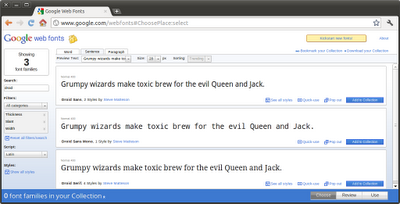
Search droid in http://www.google.com/webfonts

Last article I show how to embed one fonts, now I will show how to use Collection.

Click Collection buttons in all three available fonts, they will be listed in the bottom. And then click the Use button.
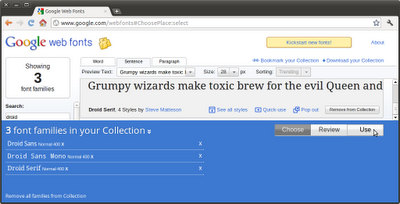
Collection of Google web fonts

Almost done! Verify your settings below and then copy the code for your website.

Scroll down to 3. Add this code to your website, copy the code as the first element in the of your HTML document.
<link href='http://fonts.googleapis.com/css?family=Droid+Sans|Droid+Sans+Mono|Droid+Serif' rel='stylesheet' type='text/css'>


Add the font name to your CSS styles just as you'd do normally with any other font.
font-family: 'Droid Sans', sans-serif;
font-family: 'Droid Sans Mono', sans-serif;
font-family: 'Droid Serif', serif;

like as:
h1 { font-family: 'Droid Sans', sans-serif; font-weight: 400; }
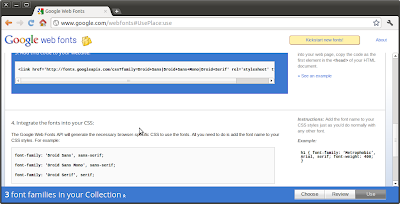
Integrate the fonts into your CSS

Example:
<!doctype html>
<head>
<link href='http://fonts.googleapis.com/css?family=Droid+Sans|Droid+Sans+Mono|Droid+Serif' rel='stylesheet' type='text/css'>
</link>
<title>Mobile-Web-App: Android Fonts</title>
<meta charset="utf-8"></meta>
<meta name = "viewport" content = "width = device-width, height = device-height" />

<link rel="stylesheet" href="http://code.jquery.com/mobile/1.0/jquery.mobile-1.0.min.css" />
<script type="text/javascript" src="http://code.jquery.com/jquery-1.6.4.min.js"></script>
<script type="text/javascript" src="http://code.jquery.com/mobile/1.0/jquery.mobile-1.0.min.js"></script>

<style>
h2 { font-family: 'Droid Sans', sans-serif; font-weight: 400; }
h3 { font-family: 'Droid Sans Mono', sans-serif; font-weight: 400; }
h4 { font-family: 'Droid Serif', serif; font-weight: 400; }
</style>

</head>
<body>

<div data-role="page" id="home">
<div data-role="header">
<h1>Google Web Fonts: Droid</h1>
</div>

<div data-role="content">
<h2>Droid Sans</h2>
<h3>Droid Sans Mono</h3>
<h4>Droid Serif</h4>
</div>

<div data-role="footer">
<h4><a href="http://mobile-web-app.blogspot.com/">http://mobile-web-app.blogspot.com/</a></h4>
</div>

</div>

</body>
</html>
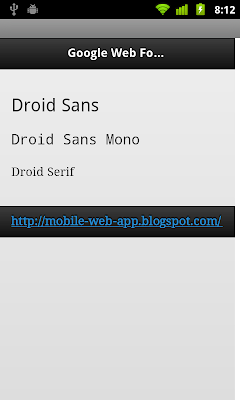


Using Android fonts on webpage

Sunday, January 15, 2012

Using Google web fonts in your web page: Hundreds of free, open-source fonts optimized for web!


About Google Web Fonts

Google Web Fonts makes web fonts quick and easy to use for everyone, including professional designers and developers. We believe that there should not be any barriers to making great websites.

Our goals are to create a directory of core web fonts for the world and to provide an API service so that anyone can bring quality typography to their webpages.

The API service runs on Google's servers. They are fast, reliable and tested. Google provide the service free of charge. It is possible to add Google Web Fonts to a website in seconds.

A web built with web fonts is a web that is more beautiful, more readable, more accessible and more open.

Open Source Fonts

All of the fonts are Open Source. This means that you are free to share your favorites with friends and colleagues. You can even improve or customize them and collaborate with the original designer. And you can use them in every way you want, privately or commercially – in print, on your computer, or in your websites.

We are working with designers around the world to publish quality typeface designs that are made for the web. If you design fonts and would like to contribute your own designs, please get in touch. Fonts in the directory can become very popular and seen by millions of people every day.

The Google Web Fonts Team


It's very easy to use any Google web fonts on your page:

Visit Google web fonts http://www.google.com/webfonts, click "Start choosing fonts" to start.
Google web fonts

Scroll to choose the fonts, for example: Flavors. Click Quick-use.
Choose fonts

Now your fonts is prepared.
Integrate the font in your page

scroll down to "3. Add this code to your website:", copy the code as the first element in the <head> of your HTML document.
<link href='http://fonts.googleapis.com/css?family=Flavors' rel='stylesheet' type='text/css'>


Add the font name to your CSS styles just as you'd do normally with any other font.

h1 { font-family: 'Flavors', cursive; font-weight: 400; }


Example:
<html>
<head>
<link href='http://fonts.googleapis.com/css?family=Flavors' rel='stylesheet' type='text/css'>
<title>Google Web Fonts</title>

<style>
h1 { font-family: 'Flavors', cursive; font-weight: 400; }
</style>
</head>
<body>

<h1>Mobile-Web-App: Google Web Fonts</h1>

</body>
</html>

Example of using Google web fonts

next:
- Using Android fonts on webpage