<!DOCTYPE html> <html> <head> <meta charset="utf-8"> <meta name="viewport" content="width=device-width, initial-scale=1"> <title>mobile-web-app: jQuery Mobile Dual Ringe Slider</title> <link rel="stylesheet" href="http://jquerymobile.com/demos/1.3.0-beta.1/css/themes/default/jquery.mobile-1.3.0-beta.1.css" /> <script src="http://code.jquery.com/jquery-1.7.1.min.js"></script> <script src="http://jquerymobile.com/demos/1.3.0-beta.1/js/jquery.mobile-1.3.0-beta.1.js"></script> </head> <body> <div data-role="page"> <h1>Dual Range Slider</h1> <div> <div data-role="rangeslider"> <label for="range-1a">Rangeslider:</label> <input type="range" name="range-1a" id="range-1a" min="0" max="100" value="0"> <label for="range-1b">Rangeslider:</label> <input type="range" name="range-1b" id="range-1b" min="0" max="100" value="100"> </div> </div> </div> </body> </html>
Showing posts with label Code.jQuery Mobile. Show all posts
Monday, January 21, 2013
jQuery Mobile sample: Dual Range Slider
jQuery Mobile sample: Panel wedget of jQuery Mobile 1.3.0 beta
jQuery Mobile 1.3.0 beta introduce new cool panel widget. Panels are designed to be as flexible as possible to make it easy to create menus, collapsible columns, drawers, inspectors panes and more.
<!DOCTYPE html> <html> <head> <meta charset="utf-8"> <meta name="viewport" content="width=device-width, initial-scale=1"> <title>mobile-web-app: jQuery Mobile Panel</title> <link rel="stylesheet" href="http://jquerymobile.com/demos/1.3.0-beta.1/css/themes/default/jquery.mobile-1.3.0-beta.1.css" /> <script src="http://code.jquery.com/jquery-1.7.1.min.js"></script> <script src="http://jquerymobile.com/demos/1.3.0-beta.1/js/jquery.mobile-1.3.0-beta.1.js"></script> </head> <body> <div data-role="page"> <div data-role="content"> <a href="#mypanel1" data-role="button">Open Panel - default</a> <a href="#mypanel2" data-role="button">Open Panel - overlay</a> <a href="#mypanel3" data-role="button">Open Panel - push</a> <a href="#mypanel4" data-role="button">Open Panel - reveal</a> </div> <div data-role="panel" id="mypanel1"> <h1>Default data-display</h1> <a href="" data-role="button" data-rel="close">Close Panel</a> </div> <div data-role="panel" id="mypanel2" data-display="overlay"> <h1>overlay</h1> <a href="" data-role="button" data-rel="close">Close Panel</a> </div> <div data-role="panel" id="mypanel3" data-display="push"> <h1>push</h1> <a href="" data-role="button" data-rel="close">Close Panel</a> </div> <div data-role="panel" id="mypanel4" data-display="reveal"> <h1>reveal</h1> <a href="" data-role="button" data-rel="close">Close Panel</a> </div> </div> </body> </html>
Wednesday, April 11, 2012
jQuery Mobile - Create List items dynamically
Refer to the another post of Create List items dynamically for normal Javascript version. We can create List items similarly. But after list items updated, have to call $("#unorderedlist").listview("refresh") to refresh in mobile style.
example:
Without $("#unorderedlist").listview("refresh"), it will look like this:
example:
<!doctype html>
<html>
<head>
<meta charset="utf-8"></meta>
<meta name = "viewport" content = "width = device-width, height = device-height" />
<title>Android-er</title>
<link rel="stylesheet" href="http://code.jquery.com/mobile/1.1.0-rc.2/jquery.mobile-1.1.0-rc.2.min.css" />
<script src="http://code.jquery.com/jquery-1.7.2.min.js"></script>
<script src="http://code.jquery.com/mobile/1.1.0-rc.2/jquery.mobile-1.1.0-rc.2.min.js"></script>
<script >
var weekdayarray = new Array ("Sunday",
"Monday",
"Tuesday",
"Wednesday",
"Thursday",
"Friday",
"Saturday");
function onloaded(){
var ulist = document.getElementById("unorderedlist");
//Generate list items for <ul>
for (var i = 0; i < weekdayarray.length; i++) {
var li = document.createElement("li");
li.innerHTML = weekdayarray[i];
ulist.appendChild(li);
}
$("#unorderedlist").listview("refresh");
}
</script>
</head>
<body onload="onloaded()">
<div data-role="page" id="home">
<div data-role="header">
<h1>Mobile-Web-App</h1>
</div>
<div data-role="content">
<ul data-role="listview" id="unorderedlist" />
</div>
<div data-role="footer">
<h4><a href="http://mobile-web-app.blogspot.com/">http://mobile-web-app.blogspot.com/</a></h4>
</div>
</div>
</body>
</html>
Without $("#unorderedlist").listview("refresh"), it will look like this:
Friday, February 10, 2012
jQuery Mobile: listview with search box
To add search box in listview, simply add data-filter="true" attribute. data-filter-placeholder="Search..." specify the hints in the search box, it will disappear once user enter anything in the search box.


<!doctype html>
<html>
<head>
<meta charset="utf-8"></meta>
<meta name = "viewport" content = "width = device-width, height = device-height" />
<title>Mobile-Web-App</title>
<link rel="stylesheet" href="http://code.jquery.com/mobile/1.0/jquery.mobile-1.0.min.css" />
<script type="text/javascript" src="http://code.jquery.com/jquery-1.6.4.min.js"></script>
<script type="text/javascript" src="http://code.jquery.com/mobile/1.0/jquery.mobile-1.0.min.js"></script>
</head>
<body>
<div data-role="page" id="home">
<div data-role="header">
<h1>jQuery Mobile: listview</h1>
</div>
<div data-role="content">
<ul data-role="listview" data-inset="true"
data-filter="true" data-filter-placeholder="Search...">
<li>Monday
<p>Eric</p>
</li>
<li>Tuesday
<p>Erik</p>
</li>
<li>Wednesday
<p>May</p>
</li>
<li>Thursday
<p>Peter</p>
</li>
<li>Friday
<p>Frankie</p>
</li>
<li data-role="list-divider">list-divider</li>
<li>Saturday</li>
<li>Sunday</li>
</ul>
</div>
<div data-role="footer">
<h4><a href="http://mobile-web-app.blogspot.com/">http://mobile-web-app.blogspot.com/</a></h4>
</div>
</div>
</body>
</html>
jQuery Mobile: listview with number - ordered list

To implement listview with number, simple replace <ul> with <ol>.
Example:
<!doctype html>
<html>
<head>
<meta charset="utf-8"></meta>
<meta name = "viewport" content = "width = device-width, height = device-height" />
<title>Mobile-Web-App</title>
<link rel="stylesheet" href="http://code.jquery.com/mobile/1.0/jquery.mobile-1.0.min.css" />
<script type="text/javascript" src="http://code.jquery.com/jquery-1.6.4.min.js"></script>
<script type="text/javascript" src="http://code.jquery.com/mobile/1.0/jquery.mobile-1.0.min.js"></script>
</head>
<body>
<div data-role="page" id="home">
<div data-role="header">
<h1>jQuery Mobile: listview</h1>
</div>
<div data-role="content">
<ol data-role="listview" data-inset="true">
<li>Monday</li>
<li>Tuesday</li>
<li>Wednesday</li>
<li>Thursday</li>
<li>Friday</li>
<li data-role="list-divider">list-divider</li>
<li>Saturday</li>
<li>Sunday</li>
</ol>
</div>
<div data-role="footer">
<h4><a href="http://mobile-web-app.blogspot.com/">http://mobile-web-app.blogspot.com/</a></h4>
</div>
</div>
</body>
</html>
Thursday, February 9, 2012
jQuery Mobile: listview with thumbnail and icon

Icon and Thumbnail used in this example:
original in 16x16:
original in 48x48:
<!doctype html>
<html>
<head>
<meta charset="utf-8"></meta>
<meta name = "viewport" content = "width = device-width, height = device-height" />
<title>Mobile-Web-App</title>
<link rel="stylesheet" href="http://code.jquery.com/mobile/1.0/jquery.mobile-1.0.min.css" />
<script type="text/javascript" src="http://code.jquery.com/jquery-1.6.4.min.js"></script>
<script type="text/javascript" src="http://code.jquery.com/mobile/1.0/jquery.mobile-1.0.min.js"></script>
</head>
<body>
<div data-role="page" id="home">
<div data-role="header">
<h1>jQuery Mobile: listview</h1>
</div>
<div data-role="content">
<ul data-role="listview" data-inset="true">
<li data-role="list-divider">
Q1
</li>
<li>January - thumbnail (48x48)
<img src="http://goo.gl/ZTEx7"/>
</li>
<li>February - thumbnail (16x16)
<img src="http://goo.gl/N1Z44"/>
</li>
<li>March - icon (16x16)
<img class="ui-li-icon" src="http://goo.gl/N1Z44"/>
</li>
<li data-role="list-divider">
Q2 <p class="ui-li-aside">class="ui-li-aside"</p>
</li>
<li>April</li>
<li>May</li>
<li>June</li>
<li data-role="list-divider">
Q3
</li>
<li>July</li>
<li>August</li>
<li>September</li>
<li data-role="list-divider">
Q4
</li>
<li>October</li>
<li>November</li>
<li>December</li>
</ul>
</div>
<div data-role="footer">
<h4><a href="http://mobile-web-app.blogspot.com/">http://mobile-web-app.blogspot.com/</a></h4>
</div>
</div>
</body>
</html>
jQuery Mobile: listview with dividers, data-role="list-divider"

<!doctype html>
<html>
<head>
<meta charset="utf-8"></meta>
<meta name = "viewport" content = "width = device-width, height = device-height" />
<title>Mobile-Web-App</title>
<link rel="stylesheet" href="http://code.jquery.com/mobile/1.0/jquery.mobile-1.0.min.css" />
<script type="text/javascript" src="http://code.jquery.com/jquery-1.6.4.min.js"></script>
<script type="text/javascript" src="http://code.jquery.com/mobile/1.0/jquery.mobile-1.0.min.js"></script>
</head>
<body>
<div data-role="page" id="home">
<div data-role="header">
<h1>jQuery Mobile: listview</h1>
</div>
<div data-role="content">
<ul data-role="listview" data-inset="true">
<li data-role="list-divider">
Q1
</li>
<li>January</li>
<li>February</li>
<li>March</li>
<li data-role="list-divider">
Q2 <p class="ui-li-aside">class="ui-li-aside"</p>
</li>
<li>April</li>
<li>May</li>
<li>June</li>
<li data-role="list-divider">
Q3
</li>
<li>July</li>
<li>August</li>
<li>September</li>
<li data-role="list-divider">
Q4
</li>
<li>October</li>
<li>November</li>
<li>December</li>
</ul>
</div>
<div data-role="footer">
<h4><a href="http://mobile-web-app.blogspot.com/">http://mobile-web-app.blogspot.com/</a></h4>
</div>
</div>
</body>
</html>
jQuery Mobile: listview with data-inset

<!doctype html>
<html>
<head>
<meta charset="utf-8"></meta>
<meta name = "viewport" content = "width = device-width, height = device-height" />
<title>Mobile-Web-App</title>
<link rel="stylesheet" href="http://code.jquery.com/mobile/1.0/jquery.mobile-1.0.min.css" />
<script type="text/javascript" src="http://code.jquery.com/jquery-1.6.4.min.js"></script>
<script type="text/javascript" src="http://code.jquery.com/mobile/1.0/jquery.mobile-1.0.min.js"></script>
</head>
<body>
<div data-role="page" id="home">
<div data-role="header">
<h1>jQuery Mobile: listview</h1>
</div>
<div data-role="content">
<ul data-role="listview" data-inset="true">
<li>January</li>
<li>February</li>
<li>March</li>
<li>April</li>
<li>May</li>
<li>June</li>
<li>July</li>
<li>August</li>
<li>September</li>
<li>October</li>
<li>November</li>
<li>December</li>
</ul>
</div>
<div data-role="footer">
<h4><a href="http://mobile-web-app.blogspot.com/">http://mobile-web-app.blogspot.com/</a></h4>
</div>
</div>
</body>
</html>
Compare with: Basic listview
Wednesday, February 8, 2012
jQuery Mobile: listview

<!doctype html>
<html>
<head>
<meta charset="utf-8"></meta>
<meta name = "viewport" content = "width = device-width, height = device-height" />
<title>Mobile-Web-App</title>
<link rel="stylesheet" href="http://code.jquery.com/mobile/1.0/jquery.mobile-1.0.min.css" />
<script type="text/javascript" src="http://code.jquery.com/jquery-1.6.4.min.js"></script>
<script type="text/javascript" src="http://code.jquery.com/mobile/1.0/jquery.mobile-1.0.min.js"></script>
</head>
<body>
<div data-role="page" id="home">
<div data-role="header">
<h1>jQuery Mobile: listview</h1>
</div>
<div data-role="content">
<ul data-role="listview">
<li>January</li>
<li>February</li>
<li>March</li>
<li>April</li>
<li>May</li>
<li>June</li>
<li>July</li>
<li>August</li>
<li>September</li>
<li>October</li>
<li>November</li>
<li>December</li>
</ul>
</div>
<div data-role="footer">
<h4><a href="http://mobile-web-app.blogspot.com/">http://mobile-web-app.blogspot.com/</a></h4>
</div>
</div>
</body>
</html>
jQuery Mobile: CheckBox

<!doctype html>
<html>
<head>
<meta charset="utf-8"></meta>
<meta name = "viewport" content = "width = device-width, height = device-height" />
<title>Mobile-Web-App</title>
<link rel="stylesheet" href="http://code.jquery.com/mobile/1.0/jquery.mobile-1.0.min.css" />
<script type="text/javascript" src="http://code.jquery.com/jquery-1.6.4.min.js"></script>
<script type="text/javascript" src="http://code.jquery.com/mobile/1.0/jquery.mobile-1.0.min.js"></script>
</head>
<body>
<div data-role="page" id="home">
<div data-role="header">
<h1>jQuery Mobile: Check Box</h1>
</div>
<div data-role="content">
<div data-role="fieldcontain">
<fieldset data-role="controlgroup">
<legend>AM/PM Vertical:</legend>
<label for="amv">AM</label>
<input type="checkbox" name="amv" id="amv" class="custom" />
<label for="pmv">PM</label>
<input type="checkbox" name="pmv" id="pmv" class="custom" />
</fieldset>
</div>
<div data-role="fieldcontain">
<fieldset data-role="controlgroup" data-type="horizontal">
<legend>AM/PM Horizontal:</legend>
<label for="amh">AM</label>
<input type="checkbox" name="amh" id="amh" class="custom" />
<label for="pmh">PM</label>
<input type="checkbox" name="pmh" id="pmh" class="custom" />
</fieldset>
</div>
</div>
<div data-role="footer">
<h4><a href="http://mobile-web-app.blogspot.com/">http://mobile-web-app.blogspot.com/</a></h4>
</div>
</div>
</body>
</html>
jQuery Mobile: Radio Button

<!doctype html>
<html>
<head>
<meta charset="utf-8"></meta>
<meta name = "viewport" content = "width = device-width, height = device-height" />
<title>Mobile-Web-App</title>
<link rel="stylesheet" href="http://code.jquery.com/mobile/1.0/jquery.mobile-1.0.min.css" />
<script type="text/javascript" src="http://code.jquery.com/jquery-1.6.4.min.js"></script>
<script type="text/javascript" src="http://code.jquery.com/mobile/1.0/jquery.mobile-1.0.min.js"></script>
</head>
<body>
<div data-role="page" id="home">
<div data-role="header">
<h1>jQuery Mobile: Radio Button</h1>
</div>
<div data-role="content">
<div data-role="fieldcontain">
<fieldset data-role="controlgroup">
<legend>AM/PM Vertical:</legend>
<label for="am_v">AM</label>
<input type="radio" name="apm" id="am_v" value="AM" />
<label for="pm_v">PM</label>
<input type="radio" name="apm" id="pm_v" value="PM" />
</fieldset>
</div>
<div data-role="fieldcontain">
<fieldset data-role="controlgroup" data-type="horizontal">
<legend>AM/PM Horizontal:</legend>
<label for="am_h">AM</label>
<input type="radio" name="apm" id="am_h" value="AM" />
<label for="pm_h">PM</label>
<input type="radio" name="apm" id="pm_h" value="PM" />
</fieldset>
</div>
</div>
<div data-role="footer">
<h4><a href="http://mobile-web-app.blogspot.com/">http://mobile-web-app.blogspot.com/</a></h4>
</div>
</div>
</body>
</html>
Tuesday, February 7, 2012
jQuery Mobile: Horizontally grouped select menu

<!doctype html>
<html>
<head>
<meta charset="utf-8"></meta>
<meta name = "viewport" content = "width = device-width, height = device-height" />
<title>Mobile-Web-App: Selection Menu</title>
<link rel="stylesheet" href="http://code.jquery.com/mobile/1.0/jquery.mobile-1.0.min.css" />
<script type="text/javascript" src="http://code.jquery.com/jquery-1.6.4.min.js"></script>
<script type="text/javascript" src="http://code.jquery.com/mobile/1.0/jquery.mobile-1.0.min.js"></script>
</head>
<body>
<div data-role="page" id="home">
<div data-role="header">
<h1>jQuery Mobile: Selection Menu</h1>
</div>
<div data-role="content">
<div data-role="fieldcontain">
<fieldset data-role="controlgroup" data-type="horizontal">
<select name="month" id="month">
<option value="January">January</option>
<option value="February">February</option>
<option value="March">March</option>
<option value="April">April</option>
<option value="May">May</option>
<option value="June">June</option>
<option value="July">July</option>
<option value="August">August</option>
<option value="September">September</option>
<option value="October">October</option>
<option value="November">November</option>
<option value="December">December</option>
</select>
<select name="dayofweek" id="dayofweek">
<option value="Sunday">Sunday</option>
<option value="Monday">Monday</option>
<option value="Tuesday">Tuesday</option>
<option value="Wednesday">Wednesday</option>
<option value="Thursday">Thursday</option>
<option value="Friday">Friday</option>
<option value="Saturday">Saturday</option>
</select>
<select name="apm" id="apm">
<option value="AM">AM</option>
<option value="PM">PM</option>
</select>
</fieldset>
</div>
</div>
<div data-role="footer">
<h4><a href="http://mobile-web-app.blogspot.com/">http://mobile-web-app.blogspot.com/</a></h4>
</div>
</div>
</body>
</html>
Related:
- jQuery Mobile: Group select menu inside fieldset, vertically.
jQuery Mobile: select menu inside fieldcontain
The effect of embed select menu inside container with the data-role="fieldcontain" attribute.
Run in Android build-in browser:
- in landscape orientation


- in portrait orientation

Next:
- Group select menu inside fieldset
Run in Android build-in browser:
- in landscape orientation


- in portrait orientation

<!doctype html>
<html>
<head>
<meta charset="utf-8"></meta>
<meta name = "viewport" content = "width = device-width, height = device-height" />
<title>Mobile-Web-App: Selection Menu</title>
<link rel="stylesheet" href="http://code.jquery.com/mobile/1.0/jquery.mobile-1.0.min.css" />
<script type="text/javascript" src="http://code.jquery.com/jquery-1.6.4.min.js"></script>
<script type="text/javascript" src="http://code.jquery.com/mobile/1.0/jquery.mobile-1.0.min.js"></script>
</head>
<body>
<div data-role="page" id="home">
<div data-role="header">
<h1>jQuery Mobile: Selection Menu</h1>
</div>
<div data-role="content">
<label for "dayofweek">Day Of Week:</label>
<select name="dayofweek" id="dayofweek">
<option value="Sunday">Sunday</option>
<option value="Monday">Monday</option>
<option value="Tuesday">Tuesday</option>
<option value="Wednesday">Wednesday</option>
<option value="Thursday">Thursday</option>
<option value="Friday">Friday</option>
<option value="Saturday">Saturday</option>
</select>
<div data-role="fieldcontain">
<label for "dayofweek2">Day Of Week:</label>
<select name="dayofweek2" id="dayofweek2">
<option value="Sunday">Sunday</option>
<option value="Monday">Monday</option>
<option value="Tuesday">Tuesday</option>
<option value="Wednesday">Wednesday</option>
<option value="Thursday">Thursday</option>
<option value="Friday">Friday</option>
<option value="Saturday">Saturday</option>
</select>
</div>
</div>
<div data-role="footer">
<h4><a href="http://mobile-web-app.blogspot.com/">http://mobile-web-app.blogspot.com/</a></h4>
</div>
</div>
</body>
</html>
Next:
- Group select menu inside fieldset
Monday, February 6, 2012
Selection Menu: Desktop html vs jQuery Mobile
On Desktop:

On jQuery Mobile:

Next:
- jQuery Mobile: select menu inside fieldcontain

<!doctype html>
<html>
<head>
<meta charset="utf-8"></meta>
<title>Mobile-Web-App: Selection Menu</title>
</head>
<body>
<h1>Mobile-Web-App</h1>
<label for "dayofweek">Day Of Week:</label>
<select name="dayofweek" id="dayofweek">
<option value="Sunday">Sunday</option>
<option value="Monday">Monday</option>
<option value="Tuesday">Tuesday</option>
<option value="Wednesday">Wednesday</option>
<option value="Thursday">Thursday</option>
<option value="Friday">Friday</option>
<option value="Saturday">Saturday</option>
</select>
</body>
</html>
On jQuery Mobile:

<!doctype html>
<html>
<head>
<meta charset="utf-8"></meta>
<meta name = "viewport" content = "width = device-width, height = device-height" />
<title>Mobile-Web-App: Selection Menu</title>
<link rel="stylesheet" href="http://code.jquery.com/mobile/1.0/jquery.mobile-1.0.min.css" />
<script type="text/javascript" src="http://code.jquery.com/jquery-1.6.4.min.js"></script>
<script type="text/javascript" src="http://code.jquery.com/mobile/1.0/jquery.mobile-1.0.min.js"></script>
</head>
<body>
<div data-role="page" id="home">
<div data-role="header">
<h1>jQuery Mobile: Selection Menu</h1>
</div>
<div data-role="content">
<label for "dayofweek">Day Of Week:</label>
<select name="dayofweek" id="dayofweek">
<option value="Sunday">Sunday</option>
<option value="Monday">Monday</option>
<option value="Tuesday">Tuesday</option>
<option value="Wednesday">Wednesday</option>
<option value="Thursday">Thursday</option>
<option value="Friday">Friday</option>
<option value="Saturday">Saturday</option>
</select>
</div>
<div data-role="footer">
<h4><a href="http://mobile-web-app.blogspot.com/">http://mobile-web-app.blogspot.com/</a></h4>
</div>
</div>
</body>
</html>
Next:
- jQuery Mobile: select menu inside fieldcontain
jQuery Mobile: textarea
Example of using jQuery Mobile textarea, displayed on Android device running Opera Mobile, version 11.50.


<!doctype html>
<html>
<head>
<meta charset="utf-8"></meta>
<meta name = "viewport" content = "width = device-width, height = device-height" />
<title>Mobile-Web-App: textarea</title>
<link rel="stylesheet" href="http://code.jquery.com/mobile/1.0/jquery.mobile-1.0.min.css" />
<script type="text/javascript" src="http://code.jquery.com/jquery-1.6.4.min.js"></script>
<script type="text/javascript" src="http://code.jquery.com/mobile/1.0/jquery.mobile-1.0.min.js"></script>
</head>
<body>
<div data-role="page" id="home">
<div data-role="header">
<h1>jQuery Mobile: textarea</h1>
</div>
<div data-role="content">
<label for="textarea-a">Textarea:</label>
<textarea name="textarea" id="textarea-a">
textarea WITHOUT data-role="fieldcontain"
</textarea>
<div data-role="fieldcontain">
<label for="textarea">Textarea:</label>
<textarea name="textarea" id="textarea">
textarea INSIDE data-role="fieldcontain"
</textarea>
</div>
</div>
<div data-role="footer">
<h4><a href="http://mobile-web-app.blogspot.com/">http://mobile-web-app.blogspot.com/</a></h4>
</div>
</div>
</body>
</html>
Sunday, February 5, 2012
jQuery Mobile: text input types
Last post show a direct porting from desktop html to jQuery Mobile version, with some basic text input and input type. It's further modified to target mobile device, using jQuery Mobile. Also show more text input types.


<!doctype html>
<html>
<head>
<meta charset="utf-8"></meta>
<meta name = "viewport" content = "width = device-width, height = device-height" />
<title>Mobile-Web-App: text input and input type</title>
<link rel="stylesheet" href="http://code.jquery.com/mobile/1.0/jquery.mobile-1.0.min.css" />
<script type="text/javascript" src="http://code.jquery.com/jquery-1.6.4.min.js"></script>
<script type="text/javascript" src="http://code.jquery.com/mobile/1.0/jquery.mobile-1.0.min.js"></script>
</head>
<body>
<div data-role="page" id="home">
<div data-role="header">
<h1>jQuery Mobile: text input types</h1>
</div>
<div data-role="content">
<label for="name">Text Input:</label>
<input type="text" name="name" id="name" />
<label for="password">Password:</label>
<input type="password" name="password" id="password" />
<label for="number">Number:</label>
<input type="number" name="number" id="number" />
<label for="email">Email:</label>
<input type="email" name="email" id="email" />
<label for="url">Url:</label>
<input type="url" name="url" id="url" />
<label for="tel">Tel:</label>
<input type="tel" name="tel" id="tel" />
<label for="time">Time:</label>
<input type="time" name="time" id="time" />
<label for="date">Date:</label>
<input type="date" name="date" id="date" />
<label for="month">Month:</label>
<input type="month" name="month" id="month" />
<label for="week">Week:</label>
<input type="week" name="week" id="week" />
<label for="datetime">Datetime:</label>
<input type="datetime" name="datetime" id="datetime" />
<label for="datetime-l">Datetime local:</label>
<input type="datetime-local" name="datetime-l" id="datetime-l" />
<label for="color">Color:</label>
<input type="color" name="color" id="color" />
</div>
<div data-role="footer">
<h4><a href="http://mobile-web-app.blogspot.com/">http://mobile-web-app.blogspot.com/</a></h4>
</div>
</div>
</body>
</html>


HTML Text input and input type@jQuery Mobile
jQuery Mobile can convert text input to suitable for mobile device automatically, without change. Below HTML code is same as previous post "HTML Text input and input type", with jquery and jquery mobile javascript and stylesheet linked.
The html loaded on Android tablet running Honeycomb (3.2.1):
On Android build-in browser

Firefox for Android (version 10)

Opera Mobile (version 11.50)

Next: jQuery Mobile: text input types
<!doctype html>
<html>
<head>
<meta charset="utf-8"></meta>
<title>Mobile-Web-App: text input and input type</title>
<link rel="stylesheet" href="http://code.jquery.com/mobile/1.0/jquery.mobile-1.0.min.css" />
<script type="text/javascript" src="http://code.jquery.com/jquery-1.6.4.min.js"></script>
<script type="text/javascript" src="http://code.jquery.com/mobile/1.0/jquery.mobile-1.0.min.js"></script>
</head>
<body>
<h1>Mobile-Web-App</h1>
<form>
<p>Name: <input type="text" name="name" placeholder="Name"/></p>
<p>Email: <input type="email" name="email" placeholder="Email" /></p>
<p>Tel: <input type="number" name="tel" placeholder="Tel" /></P>
<p>Password: <input type="password" name="password" placeholder="Password" /></p>
<p>Birthday: <input type="date" name="birthday" /></p>
<p>Now(Date-Time): <input type="datetime" name="now" /></p>
</form>
</body>
</html>
The html loaded on Android tablet running Honeycomb (3.2.1):
On Android build-in browser

Firefox for Android (version 10)

Opera Mobile (version 11.50)

Next: jQuery Mobile: text input types
Friday, February 3, 2012
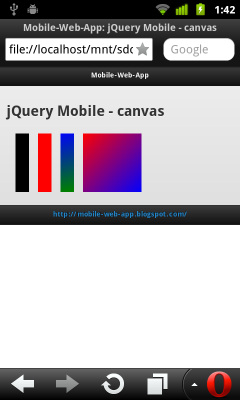
jQuery Mobile and canvas, with drawing
Example:

Compare to: HTML5 Canvas - fillRect(), with solid color/LinearGradient

<!doctype html>
<head>
<title>Mobile-Web-App: jQuery Mobile - canvas</title>
<meta charset="utf-8"></meta>
<meta name = "viewport" content = "width = device-width, height = device-height" />
<link rel="stylesheet" href="http://code.jquery.com/mobile/1.0/jquery.mobile-1.0.min.css" />
<script type="text/javascript" src="http://code.jquery.com/jquery-1.6.4.min.js"></script>
<script type="text/javascript" src="http://code.jquery.com/mobile/1.0/jquery.mobile-1.0.min.js"></script>
<script>
$(document).ready(function () {
var canvasWidth = $("#canvas").width();
var canvasHeight = $("#canvas").height();
var canvas = $("#canvas").get(0);
var context = canvas.getContext("2d");
drawRects(context);
});
function drawRects(c){
c.lineWidth = 20;
//default color
c.fillRect(20, 10, 30, 130);
//Rect in red
c.fillStyle = "#FF0000";
c.fillRect(70, 10, 30, 130);
//Rect fill gradient
//source and destination (x,y) coordinates for the gradient:
//- createLinearGradient(srcX, srcY, destX, destY)
gradient = c.createLinearGradient(100, 10, 130, 140);
gradient.addColorStop(0,"blue"); //start from blue
gradient.addColorStop(1,"green"); //end to green
c.fillStyle = gradient;
c.fillRect(120, 10, 30, 130);
gradient2 = c.createLinearGradient(170, 10, 300, 140);
gradient2.addColorStop(0,"red"); //start from red
gradient2.addColorStop(1,"blue"); //end to blue
c.fillStyle = gradient2;
c.fillRect(170, 10, 130, 130);
}
</script>
</head>
<body>
<div data-role="page" id="home">
<div data-role="header">
<h3>Mobile-Web-App</h3>
</div>
<div data-role="content">
<h1>jQuery Mobile - canvas</h1>
<canvas id="canvas">Sorry! Your browser doesn't support Canvas.</canvas>
</div>
<div data-role="footer">
<h4><a href="http://mobile-web-app.blogspot.com/">http://mobile-web-app.blogspot.com/</a></h4>
</div>
</div>
</body>
</html>
Compare to: HTML5 Canvas - fillRect(), with solid color/LinearGradient
jQuery Mobile and canvas
Example of jQuery Mobile and canvas.

next: jQuery Mobile and canvas, with drawing

<!doctype html>
<head>
<title>Mobile-Web-App: jQuery Mobile - canvas</title>
<meta charset="utf-8"></meta>
<meta name = "viewport" content = "width = device-width, height = device-height" />
<link rel="stylesheet" href="http://code.jquery.com/mobile/1.0/jquery.mobile-1.0.min.css" />
<script type="text/javascript" src="http://code.jquery.com/jquery-1.6.4.min.js"></script>
<script type="text/javascript" src="http://code.jquery.com/mobile/1.0/jquery.mobile-1.0.min.js"></script>
<script>
$(document).ready(function () {
var canvasWidth = $("#canvas").width();
var canvasHeight = $("#canvas").height();
alert("Canvas Size: " + canvasWidth.toString() + " X " + canvasHeight.toString());
</script>
</head>
<body>
<div data-role="page" id="home">
<div data-role="header">
<h3>Mobile-Web-App</h3>
</div>
<div data-role="content">
<h1>jQuery Mobile - canvas</h1>
<canvas id="canvas">Sorry! Your browser doesn't support Canvas.</canvas>
</div>
<div data-role="footer">
<h4><a href="http://mobile-web-app.blogspot.com/">http://mobile-web-app.blogspot.com/</a></h4>
</div>
</div>
</body>
</html>
next: jQuery Mobile and canvas, with drawing
Thursday, February 2, 2012
jQuery Mobile - $(document).ready()
$(document).ready(handle) Specify a function (handle) to execute as soon as the DOM is loaded.
Example of using $(document).ready() in jQuery Mobile.

Example of using $(document).ready() in jQuery Mobile.

<!doctype html>
<head>
<title>Mobile-Web-App: jQuery Mobile .ready()</title>
<meta charset="utf-8"></meta>
<meta name = "viewport" content = "width = device-width, height = device-height" />
<link rel="stylesheet" href="http://code.jquery.com/mobile/1.0/jquery.mobile-1.0.min.css" />
<script type="text/javascript" src="http://code.jquery.com/jquery-1.6.4.min.js"></script>
<script type="text/javascript" src="http://code.jquery.com/mobile/1.0/jquery.mobile-1.0.min.js"></script>
<script>
$(document).ready(function () {
alert("Page Ready");
});
</script>
</head>
<body>
<div data-role="page" id="home">
<div data-role="header">
<h3>jQuery Mobile .ready()</h3>
</div>
<div data-role="content">
<h1>$(document).ready(handle)</h1>
<p>Specify a function to execute when the DOM is fully loaded.</p>
</div>
<div data-role="footer">
<h4><a href="http://mobile-web-app.blogspot.com/">http://mobile-web-app.blogspot.com/</a></h4>
</div>
</div>
</body>
</html>
Subscribe to:
Comments (Atom)


